

Using OpacityMask property we can make a specific region of an element transparent or partially transparent . In this tips I am going to show you how you can apply faded transparent effects on some elements in WPF.
We can use OpacityMask with both SolidColorBrush or GradientColorBrush . But if you want achieve the transparent effects with faded view, you have to use OpacityMask with LinearGradientBrush or even you can use RadialGradientBrush.
Let’s start with a GradientColorBrush where I have applied a gradient effects that moves from a solid to transparent color which applies to TextBox Control.
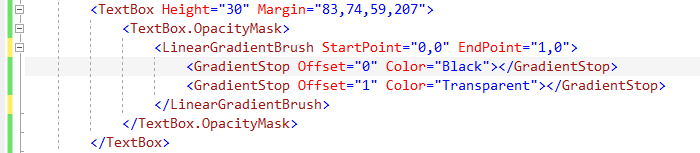
So, above code block sets the TextBox control OpacityMask with a LinerGradientBrush where gradient start from Black to Transparent.
Similarly you can apply with others elements as well, let’s say for a Button control as shown in below

On run, we will get the below output.

Well, now you can try with RadialGradientBrush for more fun
Below the complete XAML Code Block
<Window x:Class="WpfApplication3.MainWindow"
        xmlns="http://schemas.microsoft.com/winfx/2006/xaml/presentation"
        xmlns:x="http://schemas.microsoft.com/winfx/2006/xaml"
        Title="MainWindow" Height="350" Width="525" Background="AliceBlue">
    <Grid>
        <Image Name="image1" Stretch="Fill"  Margin="12" Source="/WpfApplication3;component/Images/Backgrounds_25962.jpg" />
        <Button
            Content="Click Me !"
            Height="42"
            HorizontalAlignment="Left"
            Margin="152,213,0,0"
            Name="TransBurron"
            VerticalAlignment="Top"
            Width="234" >
            <Button.OpacityMask>
                <LinearGradientBrush StartPoint="0,0" EndPoint="1,0">
                    <GradientStop Offset="0.3" Color="Black"></GradientStop>
                    <GradientStop Offset="1" Color="Transparent"></GradientStop>
                </LinearGradientBrush>
            </Button.OpacityMask>
        </Button>
        <TextBox Height="30" Margin="83,74,59,207">
            <TextBox.OpacityMask>
                <LinearGradientBrush StartPoint="0,0" EndPoint="1,0">
                    <GradientStop Offset="0" Color="Black"></GradientStop>
                    <GradientStop Offset="1" Color="Transparent"></GradientStop>
                </LinearGradientBrush>
            </TextBox.OpacityMask>
        </TextBox>
    </Grid>
</Window>
Hope this will help.
Cheers !
Aj.


